Custom GPT Retirement: Moving a Customer GPT to Your Website
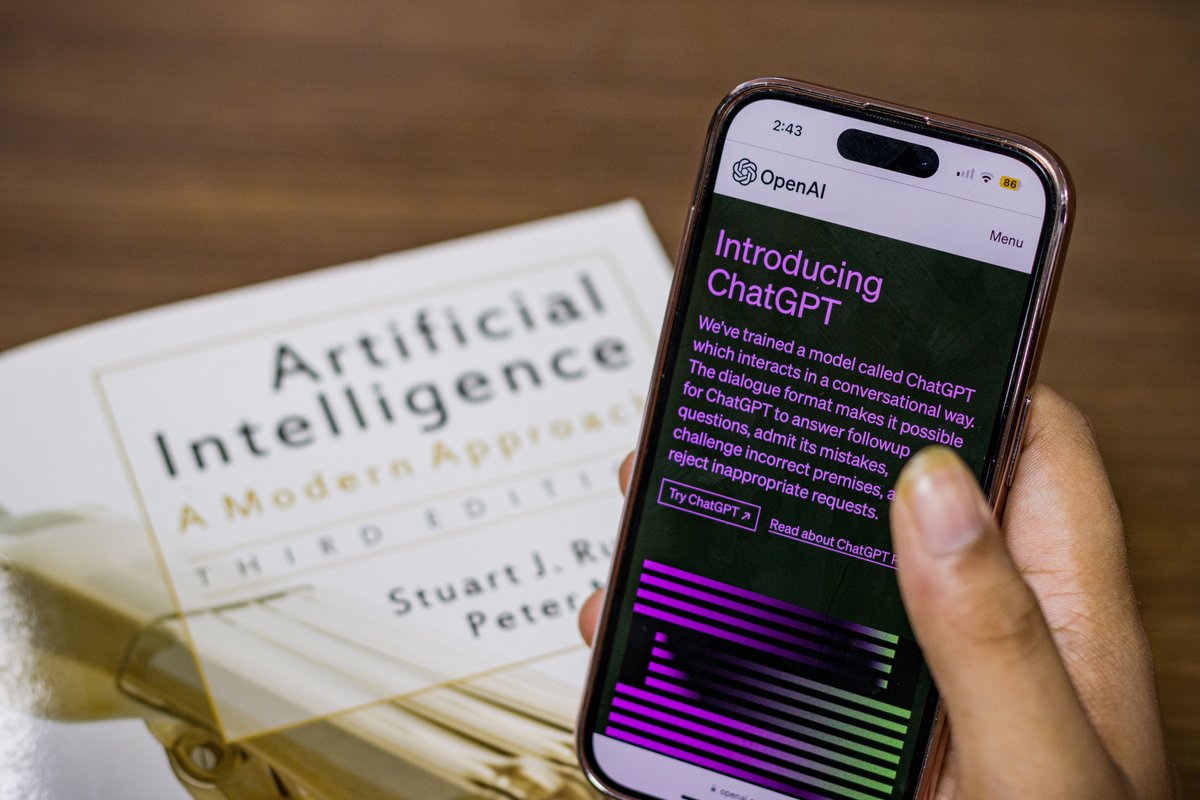
Under the custom GPT retirement, custom GPTs are scheduled to stop running on December 11, 2026. If you shared a GPT with customers through a link, it needs a new home before that date, and your own website is the obvious place for it. This guide is for small businesses that loaded a GPT with company instructions and files, then handed customers the link as a product or support assistant. One caveat up front: OpenAI’s help center FAQ on the custom GPT retirement says these dates may change. So keep an eye on the current FAQ and on any notice in your own account or workspace.
What changes in the custom GPT retirement on December 11?
Custom GPTs stop running. ChatGPT replaces them with plugins. During migration, your GPT’s instructions turn into a skill inside the new plugin, and its knowledge files get copied over as reference files. Custom actions? They don’t carry over. You rebuild them. And every migrated plugin starts out private, because your old sharing settings aren’t kept. OpenAI’s FAQ also warns that a plugin may answer differently than the original GPT did, which means you will have to test your prompts again.
Why a ChatGPT GPT for customers stops being a public channel
Here’s the catch. The migration path is built for people who use ChatGPT themselves, not for their customers. So a GPT that customers opened through a shared link stops working as a customer channel. Old GPT links are planned to redirect to the plugin, but a redirect gives nobody access. A customer who clicks the old link on your website, in an email or from a QR code just hits a dead end. Migrating inside ChatGPT keeps the tool for your own team, not for the people you actually built it for.
Before the deadline: save instructions and knowledge files
While the GPT still runs, copy its instructions and pull together the original knowledge files. For a practical GPT knowledge files export, download whatever the builder lets you download. Then go find the source documents on your own drive, where newer versions are often sitting anyway. After that, look back at what customers actually asked and which answers mattered most. That list tells you what the new assistant has to cover from day one.
Now turn those files into proper sources. One topic per document. Updated prices and policies. No duplicates contradicting each other (you’d be surprised how often two versions of the same returns policy end up in the same pile). Our guide to preparing PDFs and FAQs explains how to structure this material so an assistant can find the right passage.
How to migrate a custom GPT to your website, step by step
Put the assistant where your customers already are: on your own website, as a chat widget that answers from your documents. Four steps, really:
- Choose a custom GPT alternative for website use that answers from your own files and pages.
- Load the cleaned sources you prepared.
- Set the tone, plus the topics the assistant should and shouldn’t handle.
- Embed the widget on your site and put it on the pages where questions actually come up.
Tools like this find the relevant passage in your material and build the reply from it. They don’t lean on general knowledge. If you want the mechanics, our article on how a RAG chatbot answers covers it. Botino is one option here: a website widget that answers from your company’s own documents, FAQ and pages, and says plainly when the answer isn’t there.
What happens to custom actions?
They don’t carry over. So list what each one did and decide now how you’ll handle it. Typical examples: looking up an order, sending a form, creating a booking. A website assistant that only answers can still explain the process and point customers to the right page or form. The action itself moves somewhere else - an existing form, a booking page, or a person on your team. Should you rebuild an action inside a ChatGPT plugin? Only if your own staff are the ones using it.
Replace every old GPT link and test before switching
Before December 11, every place where you shared the GPT link has to point to the new assistant. Start with these:
- Website pages, including help, contact and product pages
- Email signatures and automated email templates
- Social profiles and pinned posts
- QR codes, which may need reprinting if they encode the GPT link directly
- Printed material such as flyers, manuals and packaging
Then test the new assistant with the real customer questions you collected earlier. Throw in a few questions your sources don’t cover, too. You want to see it admit a gap instead of guessing. Our checklist for testing a bot before launch walks through the process. Announce the switch only after the tests pass. Not before.
Bottom line: the custom GPT retirement turns a GPT you shared with customers into a private plugin, so the customer channel has to move. Three things to do. Save the instructions and files now, move the assistant to your website, then replace the old links and test. And check OpenAI’s help center FAQ once more before the deadline, since the dates may change.
FAQ
Will my customers still be able to use my custom GPT link after December 11?
Not in any useful way. OpenAI plans to redirect old GPT links to the migrated plugin, but the redirect doesn’t give anyone access. The plugin starts private, so customers who follow the link won’t reach your assistant.
Do my knowledge files and instructions carry over in the migration?
Yes, inside ChatGPT. Instructions become a skill in the new plugin, and knowledge files are copied as reference files. Custom actions don’t carry over, though. Those have to be rebuilt.
Will the migrated plugin answer the same way as my GPT?
Not necessarily. OpenAI’s FAQ says a migrated plugin may answer differently. Run your important prompts again and compare the answers before you rely on it.
Related posts

Chatbot GDPR Checklist: What to Settle Before Launch
Before you launch a website chatbot, settle a short list of questions: what personal data the chat collects, on what lawful basis,…

AI Agent vs Chatbot: What Changes When the Bot Can Act
AI agent vs chatbot? The line is simpler than the marketing makes it look. A chatbot answers. An AI agent can also…
Feeding a Chatbot With PDFs and FAQs: How to Prepare Sources
To feed a chatbot with PDFs and FAQs that actually answer, prepare the sources before you upload anything: audit what you have,…